Listen to articles and books
Your options for listening to full-text articles and ebooks
Using Microsoft Edge
We recommend using the Microsoft Edge browser to listen to the full text of our online articles and ebooks. Some platforms, such as EBSCO and Taylor and Francis, have built-in options too, as outlined later in this page.
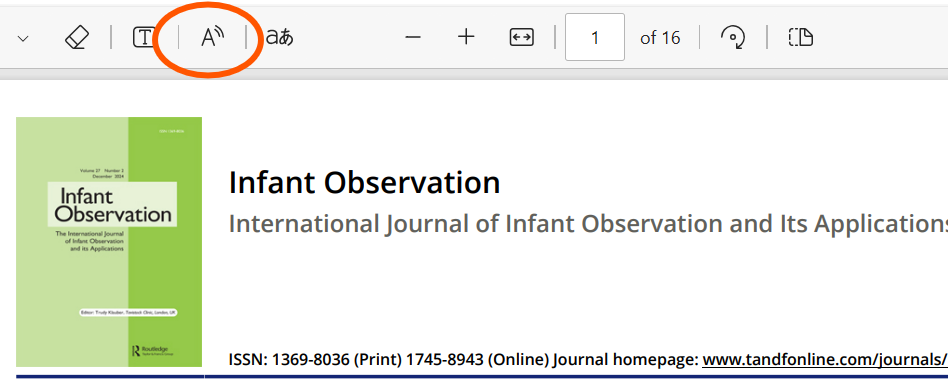
If accessing full text directly in the Edge browser on the journal or ebook website, look for the readaloud A symbol in the Edge address bar (circled in the screenshot below) and click it to activate the readaloud function. Then click ‘voice options’ to reveal choices on the voice you want to listen to and the speed of the playback.

You can also use Edge to listen to previously downloaded PDFs if you have it set as your default PDF reader. When using Edge in this way, the readalound A symbol can found in the PDF reader bar just above the text of the document (circled in the screenshot below).
Listen or download sound files from EBSCO
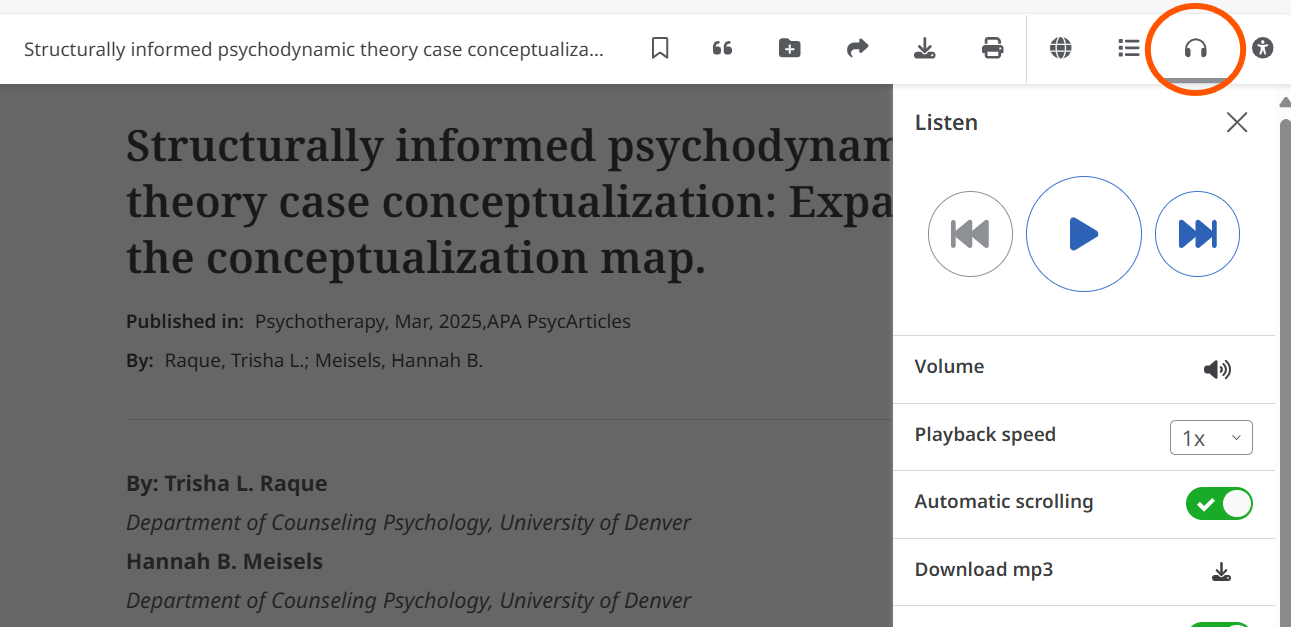
You can also listen to full-text articles on EBSCO using the built-in text-to-speech feature. Click the headphones icon when in a full-text article or book chapter to reveal your playback options. Click the Download MP3 option to download the article as an MP3 sound file that can be listened to offline on a computer or mobile device.
Listening to EBSCO ebooks
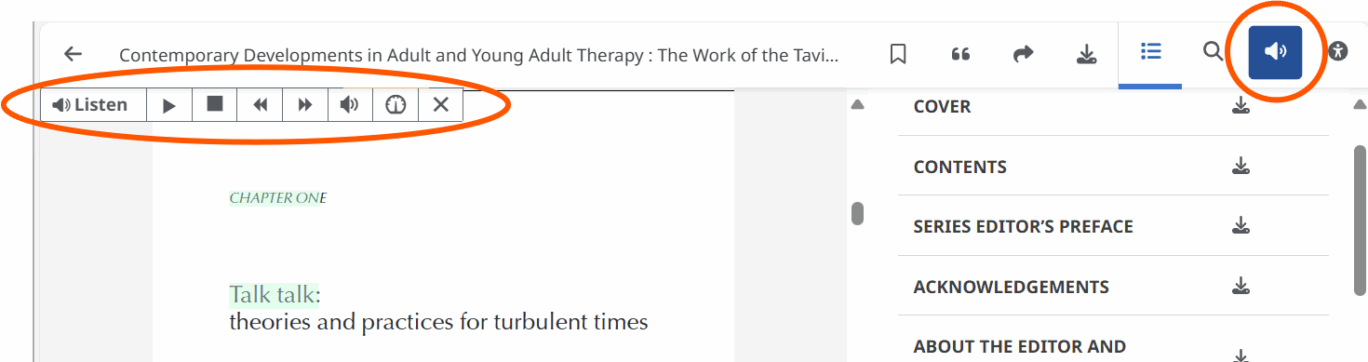
Some EBSCO ebooks do not have the Download MP3 option, but can still be listened to online with EBSCO’s built-in text-to-speech feature. These ebooks have a speaker symbol visible in the top-right of the ebook web page (circled in the screenshot below). Click on the speaker symbol to reveal the playback options available (also circled in the screenshot below).
Listen online to Taylor & Francis ebooks
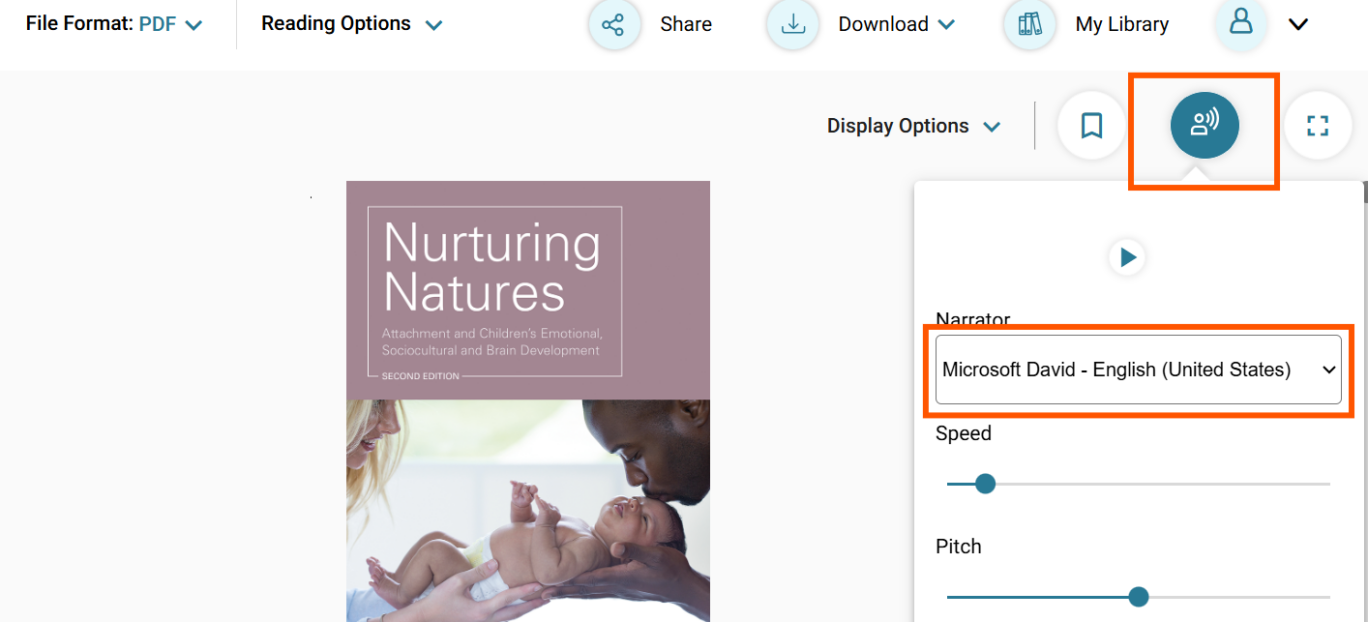
You can listen to Taylor & Francis ebooks online with its built-in tool, which has the option of different reading voices and languages. Click the icon with the listening image to start, and use the ‘Narator’ drop-down menu to select a voice and language.
Troubleshooting
- These features may not work on some mobile sites. If you experience problems try going to the desktop version.
- Read Out Loud does not work on PDFs of book chapters or journal articles that have been scanned from print as the quality is not good enough for the system to translate them into sound.