Search for specific items
How to use Discovery to quickly search for specific items in the main library collections
Sometimes, you may need to search for a book, chapter or article on the library databases, especially if you do not already have a direct link to the item from an online reading list. Follow the steps below to find a specific item, or see further down this page to see a video guide to finding specific items.
Log in to Discovery
It is best to use Discovery’s advanced search facility to find a specific item. To access this, you’ll need to first log in to Discovery (Shibboleth username and password required).
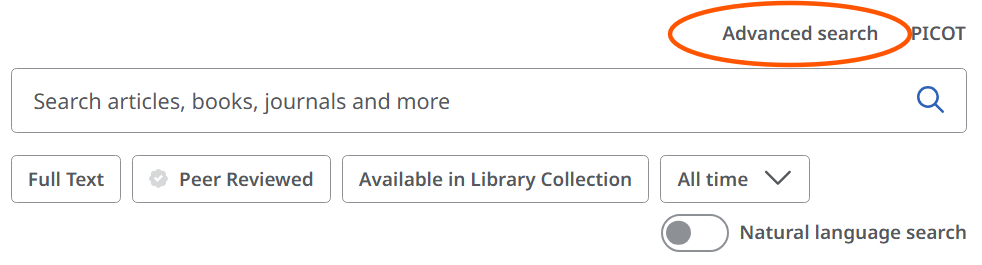
Once logged in, you will see the main Discovery page. You need to click on the ‘advanced search’ link just beneath the search box.
Using advanced search
On the advanced search page, each search box has the option to ‘select a field’. In this example, we’re going to search for the book ‘Difference: an Avoided Topic in Practice’ edited by Angela Foster.
Type the author’s last name ‘Foster’ into the first search box, and select the field ‘AU Author’.

Type some meaningful keywords from the title in the second box, for example, ‘difference’ and ‘practice’. Then select the field ‘TI Title’ for these.
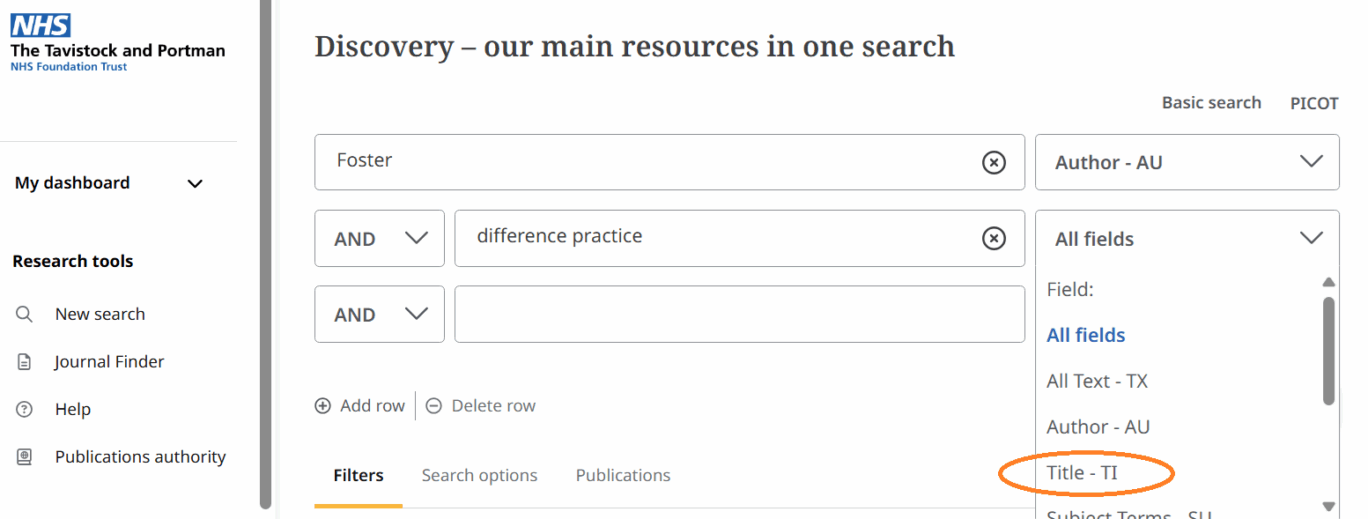
Using the author and title fields in this way should mean the item you want is close to the top of the results list. If the item is available from the library, you will see an indication below the item giving access options: for example, ‘PDF full text’, ‘EPUB full text’, ‘Full text available’ ‘Online Access’ or ‘HTML Full Text’.
