


EBSCO changes
Discovery and EBSCOhost databases have new layouts that will affect how you navigate the platforms
An updated design has been introduced on EBSCO Discovery and EBSCOhost databases such as PsycInfo, PEP Archive and SocINDEX, to make them more user friendly:
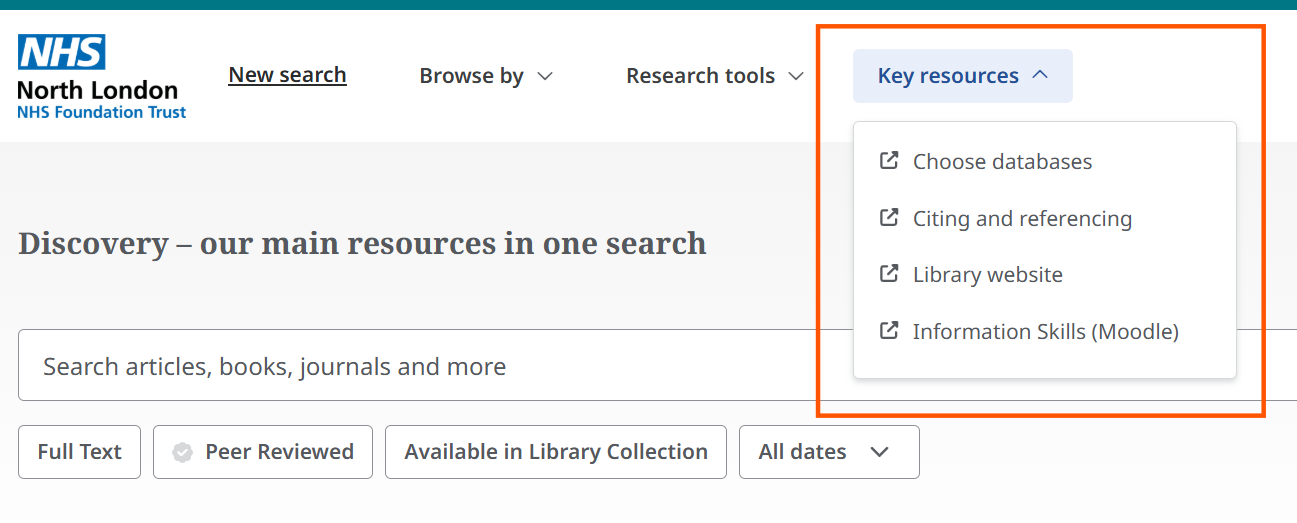
- elements such as key resources and saved information have moved to the top navigation area of the page
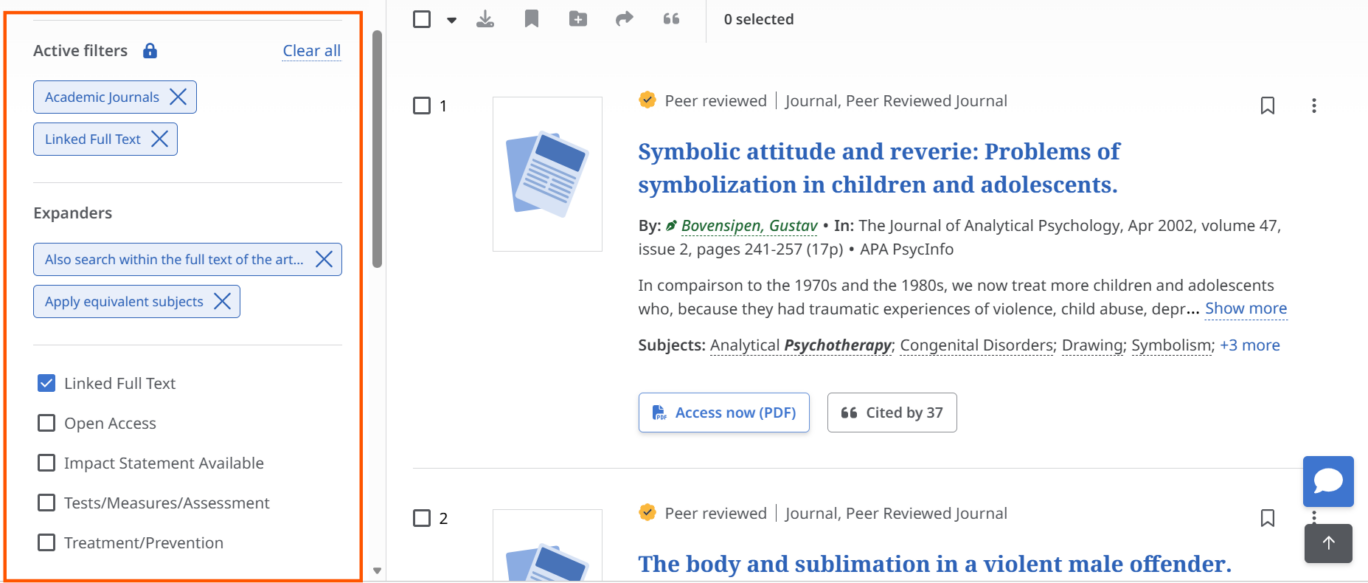
- filters such as full text, published date and content type will now appear in a left-hand sidebar after searching
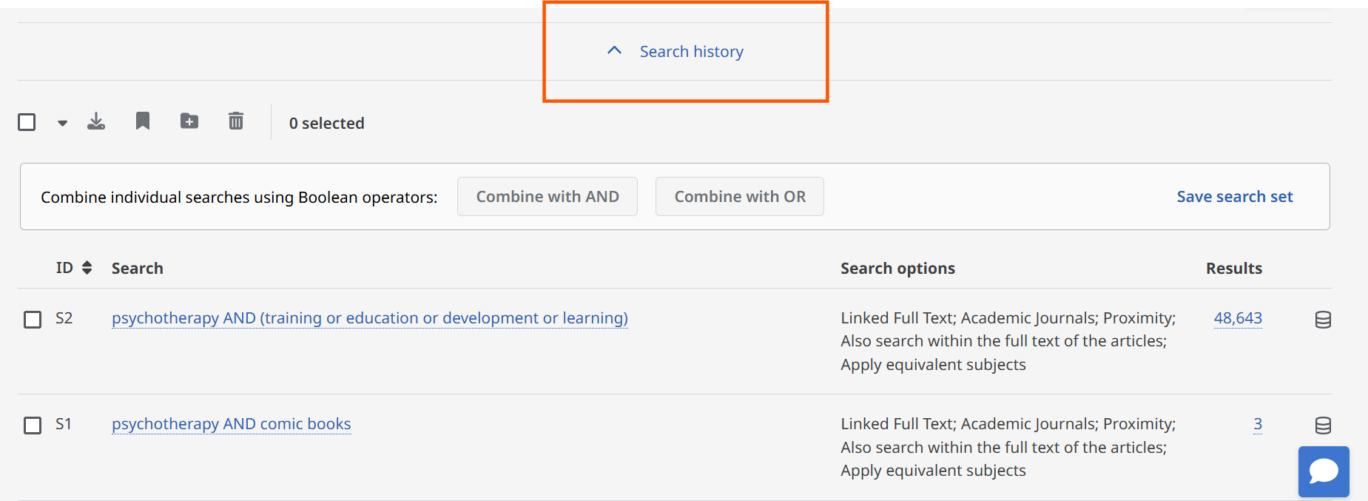
- clicking search history above the results list in advanced search shows your search strategy
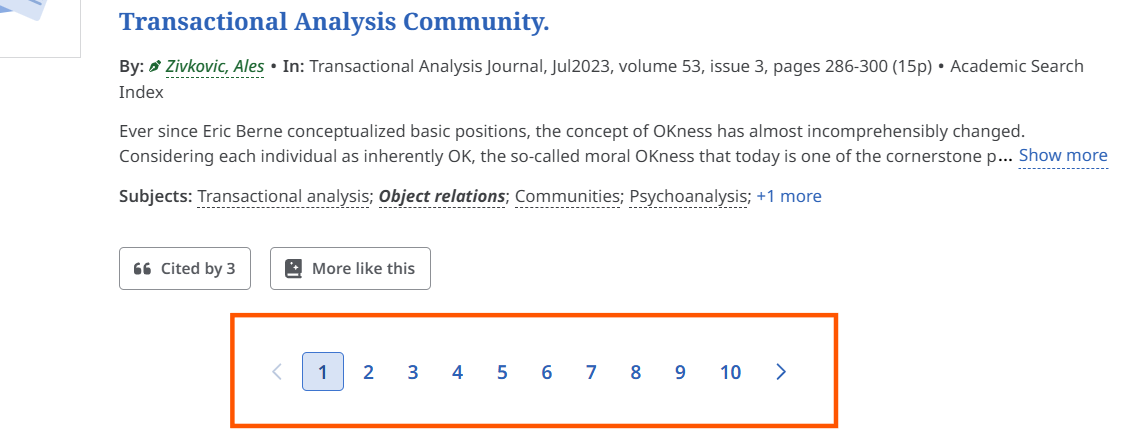
- search results are grouped in pages of up to 50 items
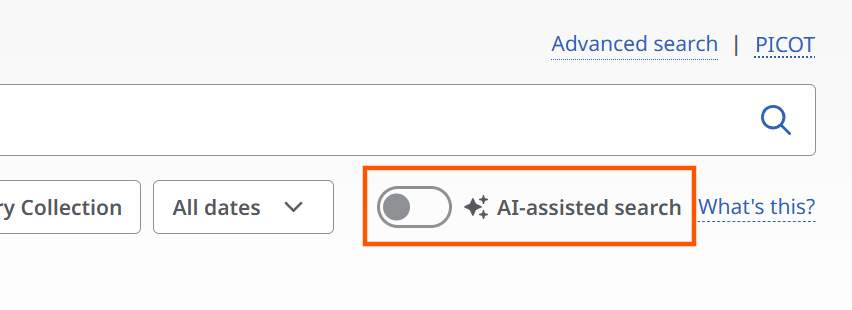
- natural language search on Discovery is now named AI-assisted search
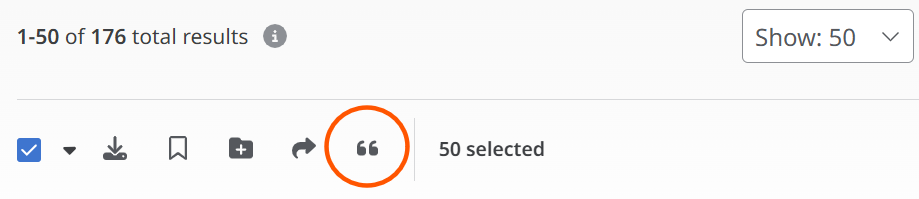
- exporting references now uses the cite button
Saved searches and project folders
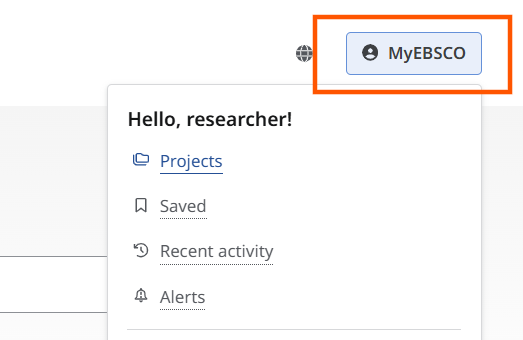
Your folders for projects, saved, recent activity and alerts can now be accessed using the MyEBSCO button. You can find this button in the top right of the page when using a desktop PC or laptop.
Key resources
The key resources drop-down menu is now found at the top of the page on a desktop PC or laptop. When clicked it shows links such as choose databases, citing and referencing and library and Information Skills.
Search filters
After running a search, you will find the filters appear in a sidebar on the left-hand side of the results list. Here, you can change the filters you use in the search, including selecting full-text items, published date, content type and all other available options.
Search history
When using advanced search on EBSCOhost databases, you can see the searches you have run in your current session by clicking the search history tab above your search results.
Results list
Your search results are now grouped in pages of up to 50 items, instead of having to click ‘show more’. You will also have the option to select individual pages of results.
AI-assisted search
Natural language search in Discovery has been renamed AI-assisted search. It works in the same way, converting research questions or statements into search queries, and aims to make it easier to find the material you want. Click the greyed-out toggle button to enable AI-assisted search.
Ask AI option
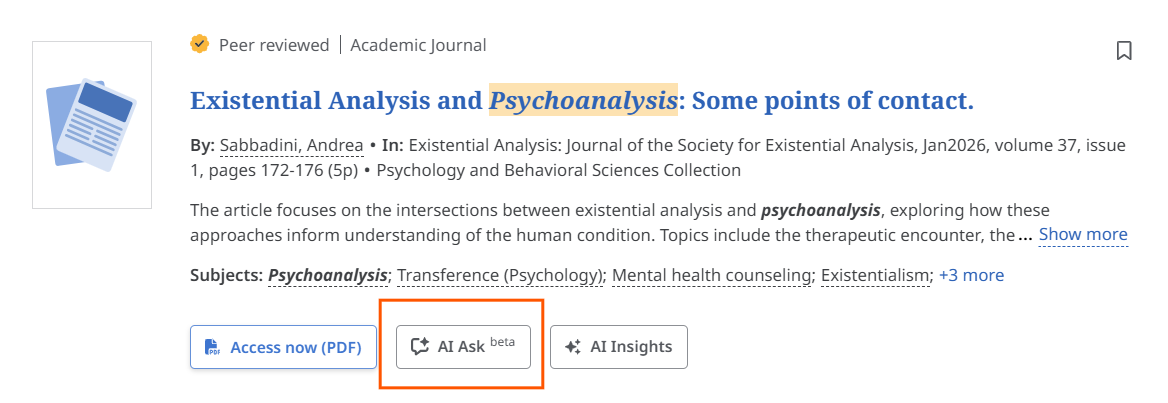
Some articles now allow you to use the Ask AI option to chat with papers and get answers to questions about the content. When Ask AI is available for a paper, you will see the button at the bottom of the article listing on the results page. Click this button to enable the chat window.
Exporting citations
To export citations to EndNote Online or in RIS format, you now need to the click the cite button, which looks like a quotation mark. You can do this from a search results list or saved references in your MyEBSCO account. On clicking the cite button, you will need to select the Export citation tab to see the options available.